Quick summary: Pick a blocking method that suits your browser and devices, install it from an official source, keep the default filter lists at first, test on a few familiar sites, and allow the sites you trust or want to support. Add more lists only if you need them, and keep the blocker updated.
Setting up an ad blocker is quick. Getting a setup you are happy with takes a little more thought, mostly about where you install it from, how aggressive to make it, and what to do when a site does not behave. This guide walks through each step in order.
Step 1: Decide which kind of blocking you need
Start with where you browse, because that determines which methods are available.
- One desktop browser: an extension is usually the simplest choice.
- Several browsers on one computer: a system-wide app, or a browser with blocking built in, may be easier than installing an extension in each.
- Phones and tablets: options depend on the browser and operating system, covered below.
- Every device on a home network: a DNS-level filter blocks known ad domains for phones, smart TVs and apps together, though it cannot hide page elements.
If you are unsure how these differ, the how ad blockers work guide explains each method. If you want help choosing between specific types, see the comparison guide.
Step 2: Install from an official source
An extension can request permission to read and change the pages you visit, so where you install it from matters.
- Open your browser's official extension store, or go to the project's own website and follow its link to the store.
- Search for the blocker by exact name and confirm the publisher matches the project's website. Lookalike extensions with similar names exist.
- Read the permissions it asks for. Blockers legitimately need broad page access, but the publisher, reviews and track record should give you confidence.
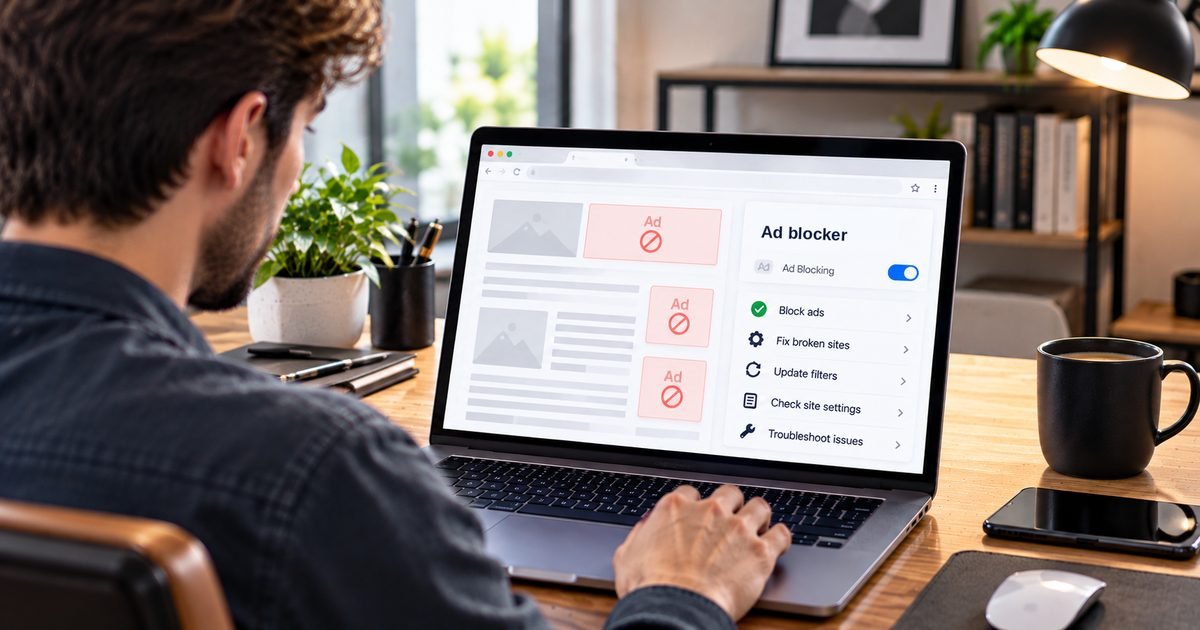
- Add the extension and pin it to your toolbar so you can see its status and pause it quickly.
Prefer projects with clear documentation, a public history of updates and, where possible, open-source code that others can inspect. That does not guarantee safety, but it makes problems easier to spot.
Step 3: Check browser support before you commit
Not every blocker works equally in every browser. Chrome and other Chromium browsers have moved extensions to Manifest V3, which changes what blocking extensions can do, and some blockers offer a reduced version there. Firefox continues to support the older extension approach, and Safari uses its own content-blocker system. Always check that the blocker you choose lists your exact browser and has a current version, and read its notes about any limitations.
Step 4: Start with the defaults, then adjust
Most blockers ship with sensible default lists enabled. Resist the urge to switch everything on at once. Stricter list combinations block more, and they also make it more likely that a login, checkout or video player stops working.
A practical approach:
- Leave the default lists on for a few days.
- Visit sites you know well, including one with plenty of ads, one you log in to and one with video.
- If you still see a lot of clutter, enable one additional list at a time, such as a tracker or annoyance list, and retest.
- If something breaks, undo the most recent change before assuming the blocker is at fault.
Many blockers also include an element picker, which lets you click on a stubborn box and hide it. Use it sparingly, because manual rules need maintenance.
Step 5: Test that it is actually working
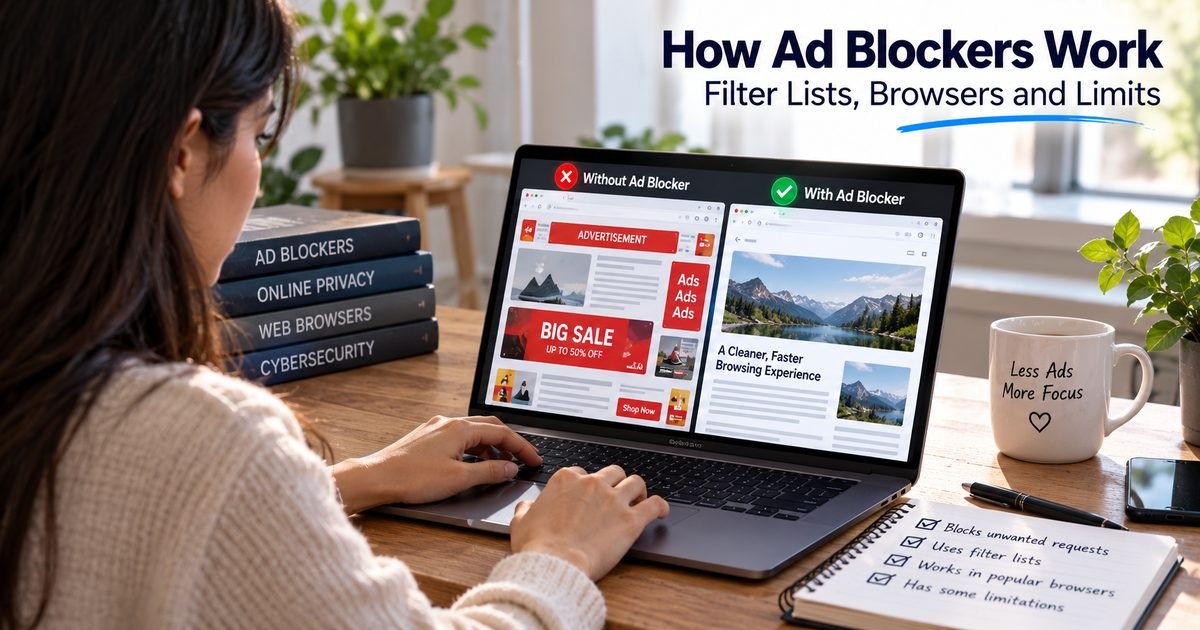
After setup, reload a few pages and look for the usual signs: fewer banners, no pop-ups, and tidy layouts. Most blockers show a counter or a log of blocked requests, which lets you see what it is doing on a given page. If ads remain, do not assume it is broken, because some content cannot be filtered. The troubleshooting guide lists the common reasons in a sensible order.
Step 6: Allow sites you trust or want to support
You do not have to choose between blocking everything and nothing. Click the blocker's icon on a site and choose to pause or allow it for that site. The choice is remembered, and blocking stays on elsewhere. This is useful for publications you want to support, for sites that depend on scripts you would otherwise block, and for any site that asks you to disable your blocker before showing content.
Phones and tablets
Mobile options are more varied and change over time, so check current information for your device.
- iPhone and iPad: Safari supports content blockers, which you enable in the device's Safari settings after installing one.
- Android: support depends on the browser. Some browsers allow extensions and others do not, so choosing a browser that supports your blocker is often the first step. DNS-based filtering is another option that covers more than the browser.
- In-app browsers: the built-in browser inside a social or messaging app usually does not run your extensions, so ads there may still appear.
Keep it updated and keep it safe
Filter lists change constantly as new ad addresses appear, so make sure automatic list updates are on, and let the extension update itself. If your browser ever warns that an extension is no longer supported or has changed ownership, take that seriously and review it. Blockers are only as trustworthy as their publishers, so the same care you take to secure your online accounts should apply to the extensions you install.
A note on subscriptions and cost
Many strong blockers are free, and some projects offer paid tiers or licenses. Paid options commonly add things like support, multi-device coverage or additional features, not necessarily better basic blocking. Our guide to free versus premium ad blockers explains what to weigh before paying.
Why it can matter beyond annoyance
Beyond cutting clutter, blocking can lower your exposure to deceptive ads. The FBI's Internet Crime Complaint Center has warned that criminals buy search ads impersonating real businesses and software, and has noted that ad blockers are one way to reduce exposure. It is not a replacement for checking the address you are visiting, a habit explained in our guide to recognizing and avoiding online scams. For the full picture, start from the ad blocking overview.
Frequently asked questions
How do I install an ad blocker?
Open your browser's official extension store, search for the blocker by name, check that the publisher matches the project's own site, review the permissions it requests, then add it and pin it to your toolbar. Reload a page to confirm it is active.
Which ad blocker works best for my browser?
It depends on the browser. Most major desktop browsers support extensions, but how much a blocker can do varies, especially on Chromium browsers after the move to Manifest V3. Check that the blocker lists your exact browser as supported and current.
Can I use an ad blocker on my phone?
Often yes, but the route differs by device. Some mobile browsers support extensions, Safari on iPhone supports content blockers, and a DNS-based or system-wide filter can cover apps as well. Check what your specific browser and operating system allow.
How do I turn off an ad blocker for one site?
Click the blocker's toolbar icon while on that site and choose the pause or allow option. Most blockers remember the choice for that site, so blocking stays on everywhere else.
Should I pay for an ad blocker?
Not necessarily. Many capable blockers are free, and paid tiers usually add extras such as support, more devices or extra features. Decide based on whether you need those extras rather than on price alone.