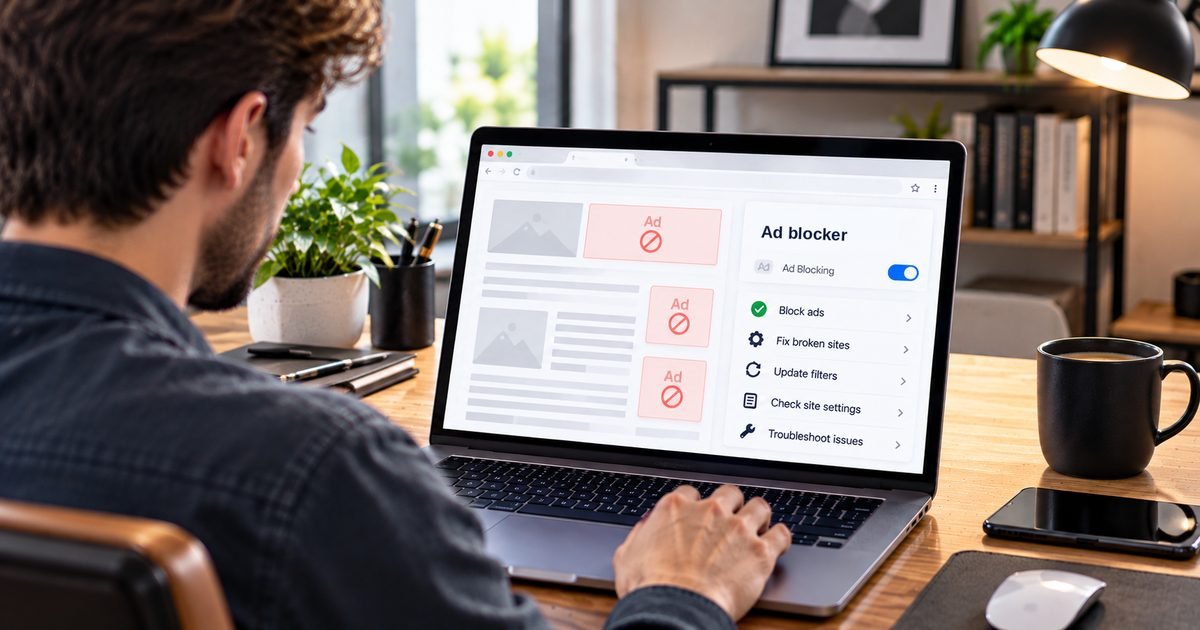
Quick summary: Decide where you browse first, then compare ad blockers on platform support, filtering depth, transparency, privacy policy, performance, ease of use and cost. Check default settings, such as allowed ads, and test two or three candidates on the same sites for a few days before choosing.
Searches for the best ad blocker return long ranked lists, but any ranking hides the real question: best for whom? A blocker that is excellent in Firefox on a laptop may be limited in Chrome, absent on your phone, or more than you need. A better approach is to compare options against criteria you choose, then test them yourself. This guide gives you both.
Step 1: Start with where and how you browse
Write down the browsers and devices you actually use. A person who browses in one desktop browser has very different needs from someone who splits time between a laptop, a phone and a smart TV. Also decide what you mainly want: fewer annoying ads, less tracking, protection from deceptive ads, or all three. Your answers rule options in and out faster than any feature table.
Step 2: Know the main approaches
Most options fall into five groups, each with trade-offs.
- Browser extensions. Installed in one browser, able to filter requests and hide page elements. Strong control and easy to pause per site, but limited to that browser and dependent on what the browser allows.
- Built-in browser protection. Some browsers include blocking or tracker protection natively. Nothing extra to install, though controls and depth vary, and some focus on trackers rather than all ads.
- Tracker-focused tools. Some tools concentrate on stopping tracking rather than hiding ads, which suits people whose main concern is privacy.
- DNS-level filtering. A filtering DNS service or local filter blocks known ad domains for every device on a network, including apps and smart TVs. It cannot hide page elements or separate same-address ads from content.
- System-wide apps. Apps that filter traffic across browsers and sometimes other apps. Broader reach, but they sit deeper in your system, so the vendor's trustworthiness matters more.
Many people combine two, such as a browser extension plus network-level filtering. The how ad blockers work guide explains the mechanics behind each.
Step 3: Compare on a consistent checklist
Use the same questions for every candidate.
- Platform support. Does it list your exact browser and operating system, and is that version current? Chrome and other Chromium browsers moved to Manifest V3, and some blockers provide a reduced version there, so check the details.
- Filtering depth. Does it offer network and cosmetic filtering, tracker lists and custom rules, or only a simple on-off switch?
- Transparency. Is the project open source or well documented? Does it explain how it works and how it makes money?
- Default behavior. Does it allow certain ads by default? Some blockers participate in an Acceptable Ads program that permits ads meeting set criteria, typically on by default and switchable off in settings.
- Privacy policy and permissions. What does the vendor say it collects? What permissions does the extension request and why?
- Performance. Does it noticeably slow browsing or use a lot of memory on your device?
- Ease of use. Can you pause it for a site, see what it blocked and fix breakage without technical skill?
- Support and updates. Is it actively maintained, with regular list and software updates?
- Cost model. Is it free, supported by donations, subscription-based or a one-time license, and what does a paid tier add?
If you want to be systematic, give each criterion a weight from one to five based on your priorities, score each candidate, and compare totals. The point is to make your priorities explicit, not to produce a precise number.
Turning your shortlist into a decision
Once you have two or three candidates, put each one through the checklist above using the vendor's own documentation. Write down the supported browsers, the default settings, the permissions requested and the cost model for each. Features and prices change, so confirm current details on each vendor's site before you decide.
Step 4: Test fairly
Marketing claims and review scores tell you little about your own browsing. A short, fair test tells you more.
- Shortlist two or three candidates that support your browser.
- Install one at a time, with default settings, and keep other blockers disabled so they do not interfere.
- Visit the same set of sites each time: a news site with heavy ads, a shopping site with checkout, a site you log in to, and one with embedded video.
- Note what you see, whether anything breaks, and how easy it is to fix.
- Use each for a few days if you can, since problems often show up in daily use.
For a rough look under the hood, your browser's developer tools show how many requests a page makes, and most blockers show a count of what they blocked. Treat numbers as a guide rather than a score.
Common mistakes when comparing
- Trusting a single ranked list. Rankings reflect someone else's priorities and browsers.
- Stacking several blockers. Running more than one often causes conflicts and breakage without blocking more.
- Ignoring defaults. An allowed-ads default changes what you see unless you switch it off.
- Overlooking your browser's limits. A blocker that is capable in one browser may be reduced in another.
- Assuming paid means better. Paid tiers often add convenience or extras rather than fundamentally better blocking, as covered in our guide to free versus premium ad blockers.
Decide and set it up
Once one candidate has handled your test sites cleanly, choose it and set it up carefully using the usage guide. If you run into ads that slip through or pages that break, the troubleshooting guide will help, and the ad blocking overview summarizes how the pieces fit together. Because blockers also reduce exposure to deceptive ads, they pair well with the habits in our guide to recognizing and avoiding online scams.
Frequently asked questions
What is the best ad blocker?
There is no single best option. The right choice depends on your browser, devices, how much control you want and your privacy priorities. Compare candidates against the same criteria and test them on the sites you actually use.
What should I look for when comparing ad blockers?
Look at which browsers and devices are supported, how deeply it filters, whether the project is transparent about how it works and makes money, what its privacy policy says, how it affects performance, how easy it is to use, and what it costs.
Are free ad blockers as good as paid ones?
Often a free blocker handles everyday blocking well, and paid tiers tend to add extras such as support, extra devices or additional features. Whether those extras are worth paying for depends on your own needs.
What are acceptable ads?
Acceptable Ads is a program in which some blockers allow ads that meet certain criteria for non-intrusiveness. In the blockers that use it, it is typically on by default and can be switched off in settings, so check before assuming everything is blocked.